
TacticalStream — Manual
TacticalStream carries live video from drones and cameras at an incident into the browser — onto the tablet in the command vehicle, onto the desk in the dispatch centre and, where wanted, out to organizations of their own through a time-limited link.
This manual covers every role. Sections that concern administration only are marked as such.
The short version. Switch the controller on, enter the address shown under Publishing, start the broadcast. The picture appears in the overview within seconds. Details under Getting a drone on air.
Part 1 — Getting started
Signing in
Access is through the address your organization was given, with an email address and a password. Accounts are always created or invited by an administrator — there is no self-registration.
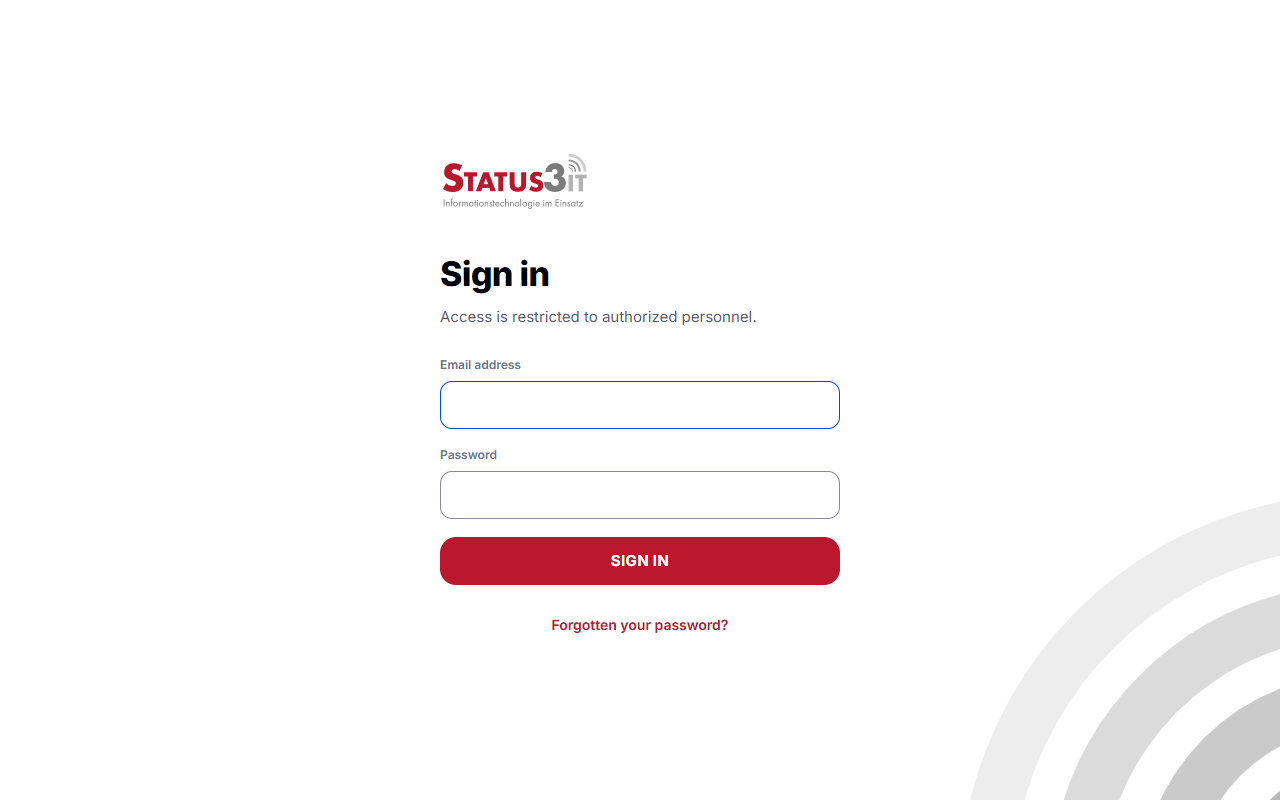
If two-step verification is active on your account, the six-digit code from your authenticator app is asked for after the password.
If your administration has made two-step verification compulsory for your account and you have not set it up yet, signing in takes you straight to enrolment. Nothing else is reachable until it is finished. You will need an authenticator app on your phone; at the end you are given ten recovery codes, shown exactly once.
After five consecutive failed attempts the account is locked for 15 minutes. The correct password is refused during that time as well.
Forgotten your password? Forgotten your password? on the sign-in page sends a link by email. It is valid for one hour and can be used exactly once. Completing it ends every existing session of that account.
The four roles
| Role | May |
|---|---|
| Read only | Watch the streams available to them and play back their recordings. Create, change or delete nothing. |
| Read and write | Additionally create, edit and delete streams, rotate publish keys, create and revoke share links, enable recording, delete recordings. |
| Administration | Additionally manage the accounts, groups and permissions of their own organization. |
| System administration | Across the platform: create organizations, set limits, suspend. See Part 4. |
Permissions are always enforced on the server. A control being out of sight is a convenience — never the protection itself.
The interface
The top of every page says who is signed in and which organization the access belongs to. Below it the navigation: Overview, Streams, Recordings, and for the appropriate roles Users and Groups, plus Account.
Top right are Full screen, Help for whichever page is open, your initials and Sign out. Full screen hides the browser's own bars — address bar, tab strip, bookmarks — and gives the application the room back; on a tablet in a vehicle that is roughly a fifth of the height. Pressing it again ends it, as do Esc and F11. Browsers that do not offer full screen — Safari on an iPhone, for one — do not show the button at all.
On narrow devices the navigation moves to the bottom edge of the screen, where a thumb can reach it.
Part 2 — The everyday jobs
Getting a drone on air
1. Fetch the address. Open the stream and switch to the Publishing tab.
The full address to enter on the controller is there, in the form
rtmp://tacst.de/abcdefghij.
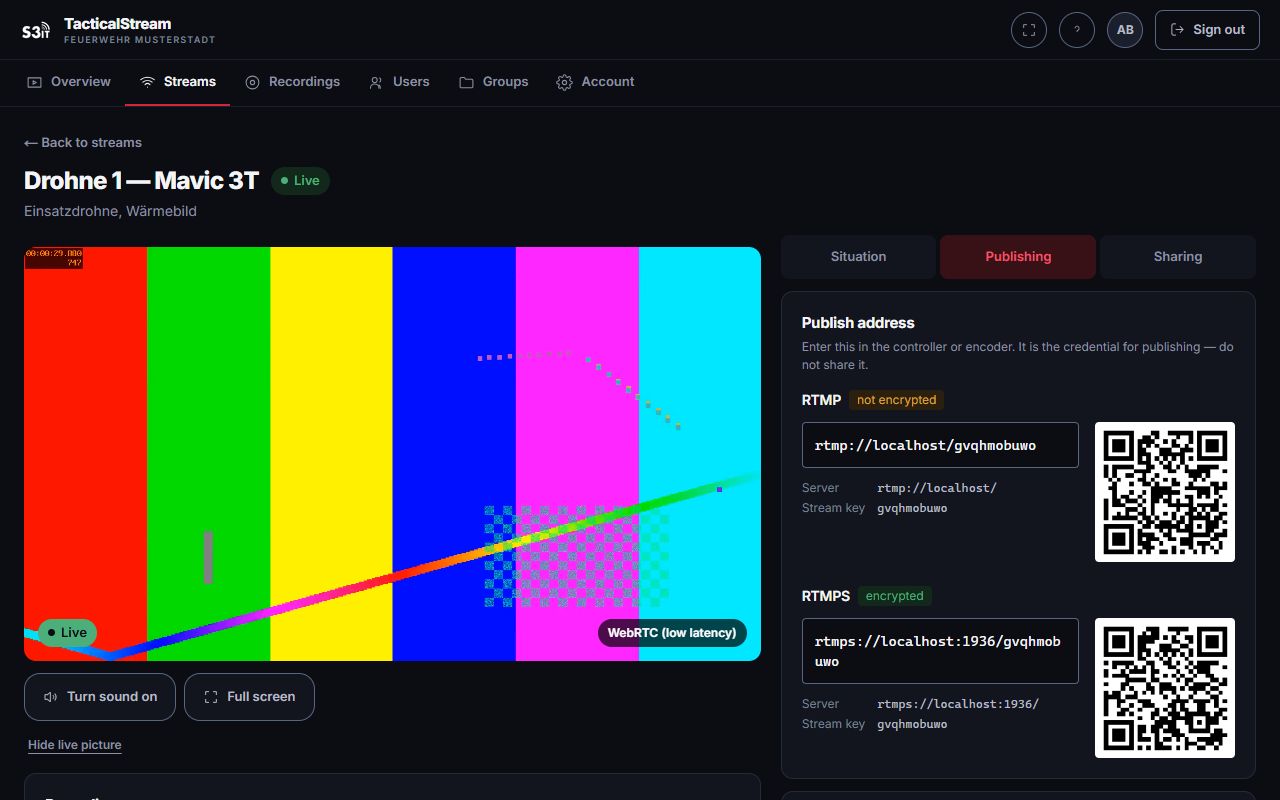
The last ten characters are the publish key. It is lower-case letters only:
no digits, no switching keyboard layer, no confusing 0 with O or 1 with
l. That is deliberate — the address gets typed on a touchscreen, at an
incident, possibly wearing gloves.
2. Enter it on the controller. On DJI: Transmission → RTMP → paste the address → Start. The menus differ between models, see Compatible controllers.
3. Check. The overview shows the stream as Live within seconds, with the time it has been sending since. The page refreshes itself; there is no need to reload.
About encryption. The built-in broadcast function of DJI controllers speaks plain RTMP only — not RTMPS, not SRT. The leg from the controller to the server is therefore not encrypted. Every onward leg — from the server into any browser — is. Streams received unencrypted are marked as such in the interface. Where that has to be avoided, use an encoder that speaks RTMPS or SRT, see HDMI encoders.
Rotating the publish key. A rotated key takes effect immediately. A broadcast still using the old one stops; the stream's name, its share links and its recordings are untouched. Rotate if the address may have reached somebody it should not have.
Watching a live picture
Open the stream from the overview or the stream list. The picture starts by itself as soon as something is sending.
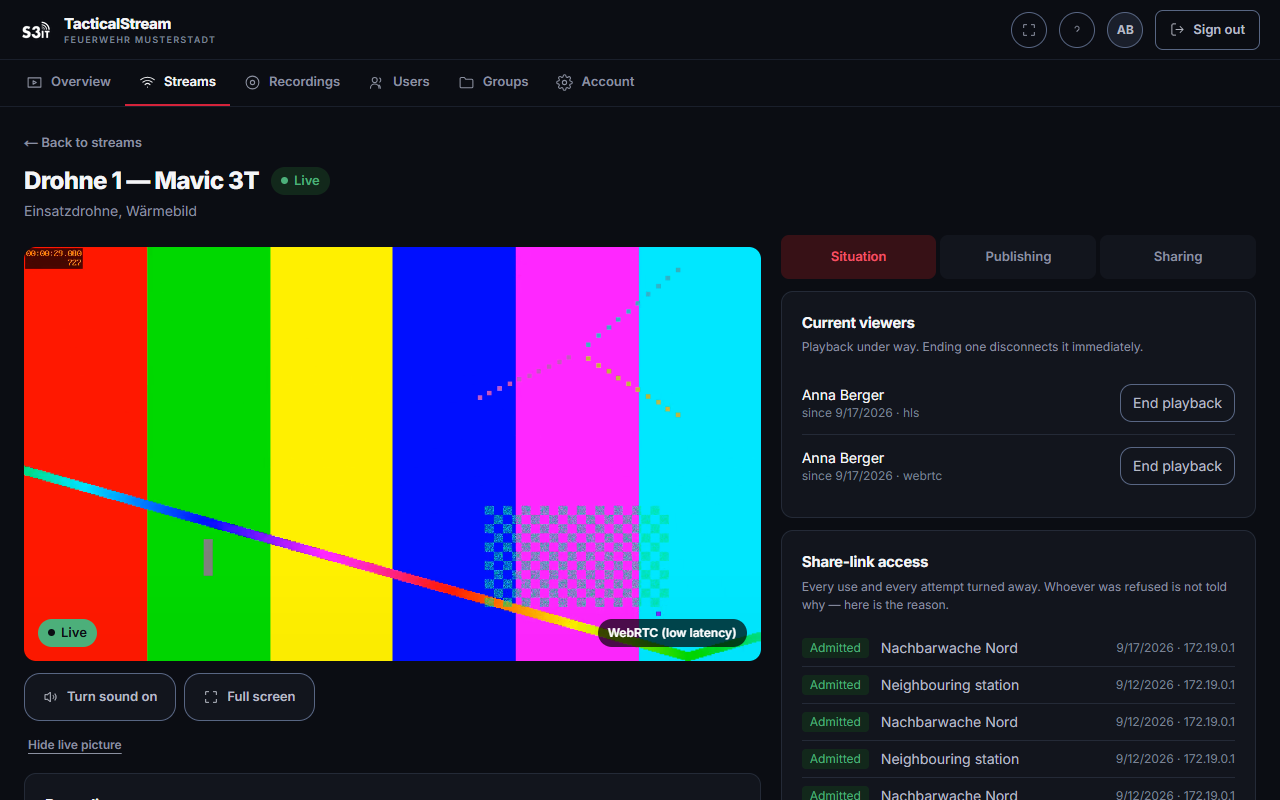
Below the picture is the route it arrived by:
- WebRTC (low latency) — the normal case, under a second of delay.
- HLS (fallback) — used when WebRTC cannot get through, typically because the network blocks outbound UDP. The delay is then a few seconds. The picture is the same one.
The switch happens automatically. If the broadcast drops, the player keeps trying by itself and picks the picture up again as soon as sending resumes — after the drone has landed for a battery change, for instance.
When nothing is sending, the page shows No signal at the moment rather than an empty player. Connect anyway opens the player regardless.
Unmute and Fullscreen sit below the picture. Sound starts muted, because browsers will not start a playback with sound on their own.
There are two full-screen controls and they do different things. The one below the picture enlarges the picture and hides everything else. The button at the top right keeps the application and takes the browser's bars instead. For the picture alone, use the lower one; to keep the stream list in view, the upper.
Sharing a stream outward
A share link shows exactly one stream and nothing else. Whoever opens it needs no account and can reach no other page of this organization.
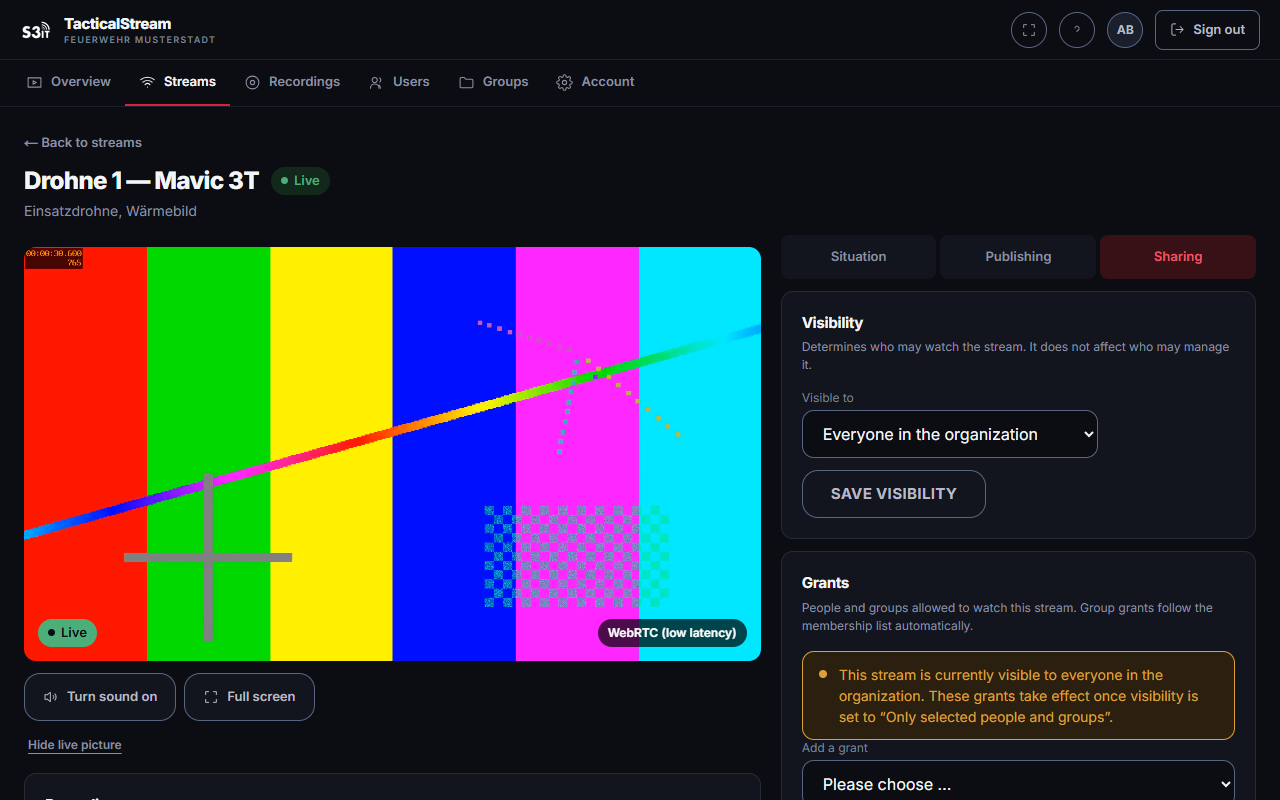
On the Sharing tab you set:
- Label — who the link is meant for. Visible internally only.
- Scope — the live picture only, or that stream's recordings as well.
- Validity — indefinite, for a duration, or until a point in time.
- PIN (optional) — four to twelve digits, asked for before anything plays. Too many wrong attempts from one place are slowed down.
- Maximum uses (optional).
The link and its QR code appear once it is created. The QR code is what actually gets held up or printed.
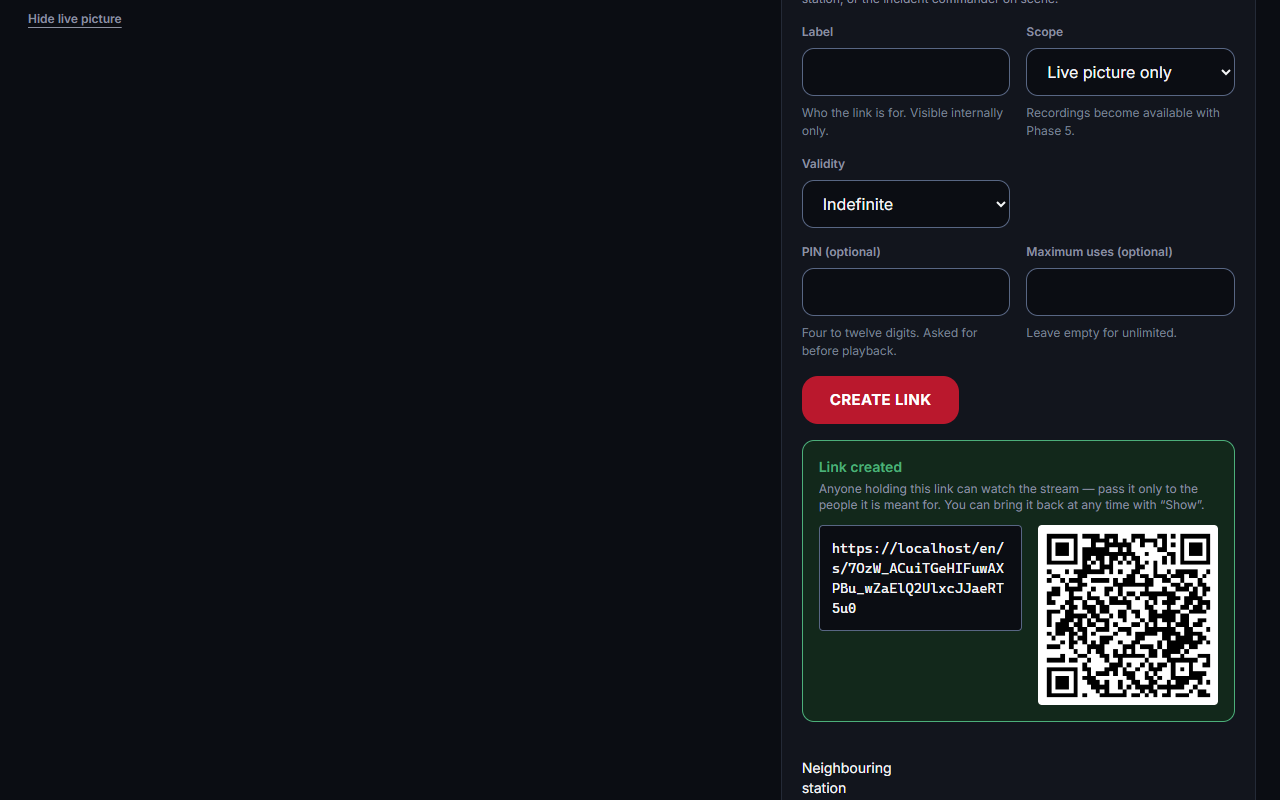
Showing it again. Show in the list brings a link back at any time, QR code included. Every showing is logged — after the first, who has seen this link is a question with more than one answer.
Revoke, activate, delete.
- Revoke puts a link out of use: new access is refused, and anyone currently watching is disconnected within 30 seconds.
- Activate undoes that. A link that has also expired or used up its uses stays refused.
- Delete removes the link permanently, along with its access log, and asks first.
Expired, revoked and exhausted links are all refused outward with the same message. Somebody trying an old link does not learn which of the three applies.
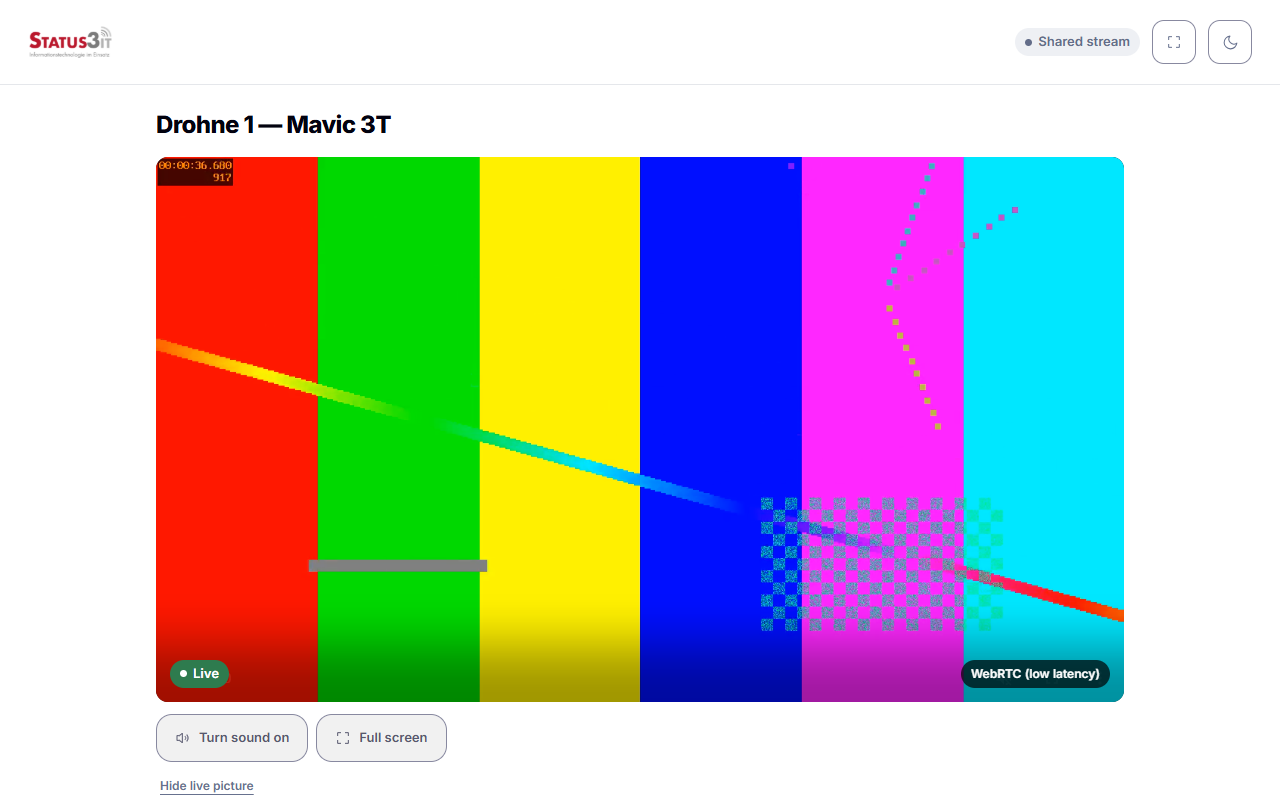
This is what the far end sees:
Access for tablet apps
Where a live picture is wanted in a dedicated tablet app rather than a browser, the answer is a device credential. It covers exactly one stream, the live picture only and no recordings, and the app has to speak WHEP — the usual way of receiving WebRTC without a browser.
Create one on the stream's Sharing tab, under Access for tablet apps. Give it a name you will recognise the device by: the question when revoking is "which tablet", not "which key".
The address and the key then appear separately, each as text and as a QR code. In the app, enter the address and put the key in the field for a bearer token. Two codes, because a QR code carries an address and an address cannot carry a header.
The key is the device's password. Whoever holds it sees the live picture. It is shown once when created and can be shown again later — which is logged, because from then on "who knows it" has more than one answer. If a tablet goes missing, revoke the credential: the picture stops at once rather than at the next reconnection.
An address with the key built in. Some apps have no field for a key and take only an address. For those, the key can be built into the address. This is the less safe form: the key is then written to this server's logs and to those of any proxy in front of it, and it stays in the device's own configuration. It is offered only once administration has permitted it for the organization, and even then only behind an explicit click.
Finding and watching recordings
Switching it on — on the stream's Situation tab, if your organization is cleared for recording. Recording runs whenever something is sending, whether or not anybody is watching.
Everything in one place. The Recordings page lists the footage of every stream in chronological order, newest first. The filter narrows it to one stream; the list scrolls on its own so the player stays in view.
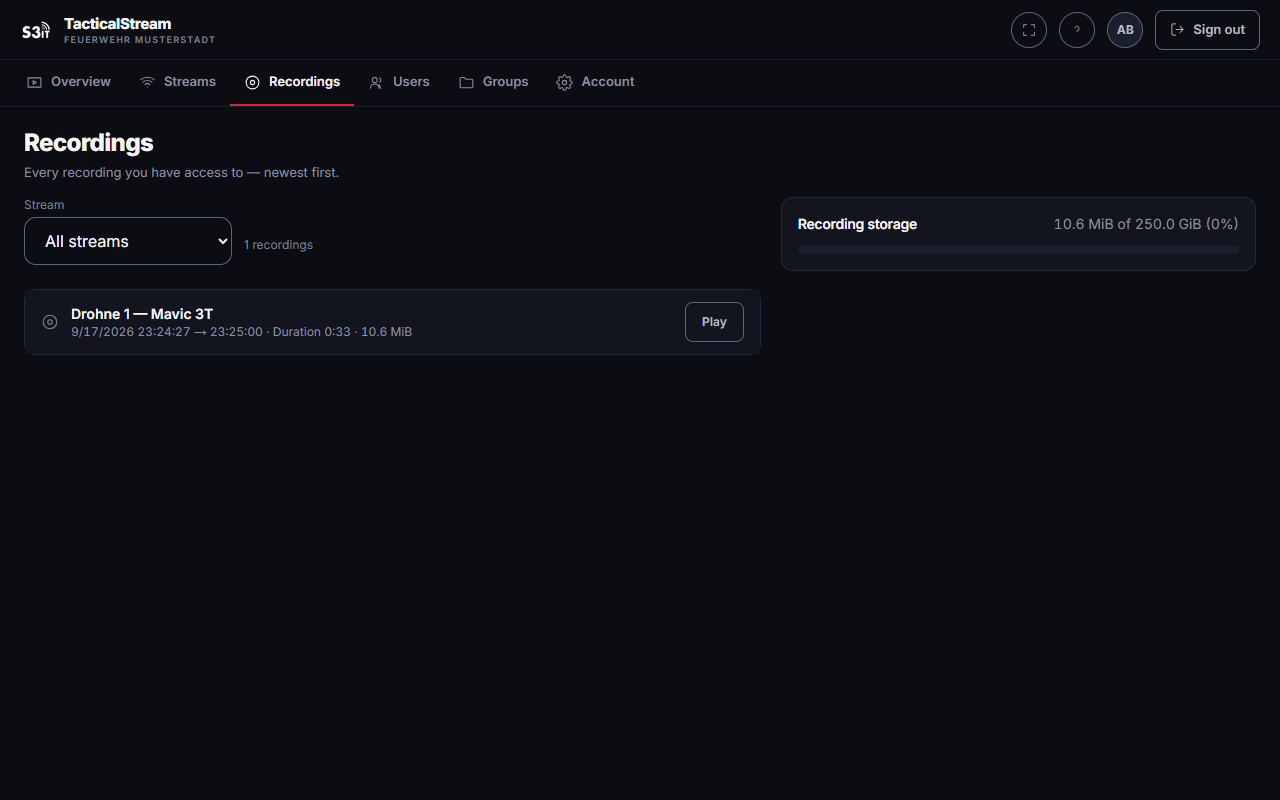
Each entry gives the date, start and end in 24-hour time, duration and size. Play opens the footage, Download saves it as a file, Delete removes it after a confirmation.
Recordings are deleted automatically once the configured retention period passes. When an organization's storage is full no new recording starts; it is warned at 80 % and again at 95 %.
Account and security
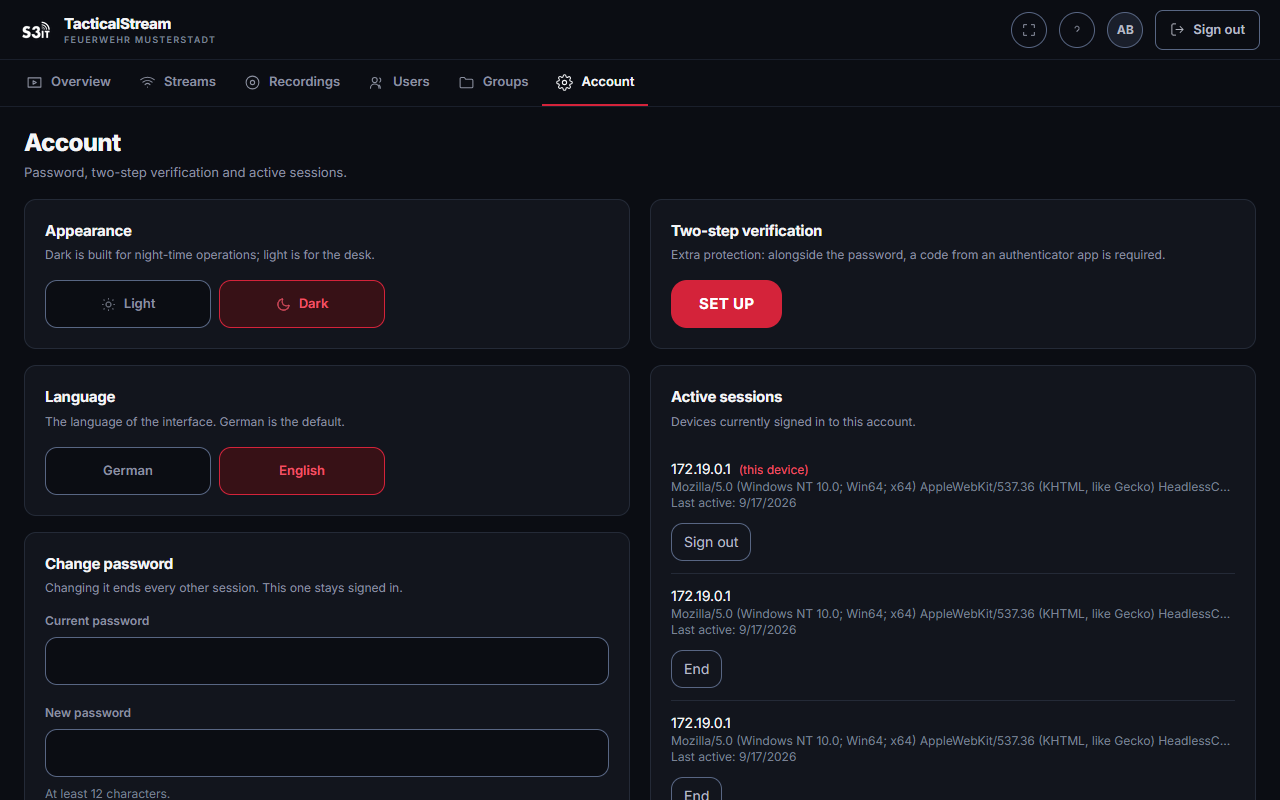
- Change password — the current password is required.
- Two-step verification — set up with an authenticator app. Enrolment issues ten recovery codes, each usable once. Keep them somewhere other than the phone. Where your administration has made it compulsory for your account you cannot remove it here, and the page says so. If the phone is lost and the recovery codes are used up, your administration can reset the second factor — you then enrol again.
- Sessions — every signed-in device, each one endable. Useful when a tablet is in unfamiliar hands.
- Language — German or English, for your account.
- Appearance — dark is built for night-time operations, light for the desk. The choice belongs to this browser rather than to the account: a tablet in a vehicle stays dark for a whole shift without altering the profile of whoever happens to be signed in.
Part 3 — The screens in detail
Overview
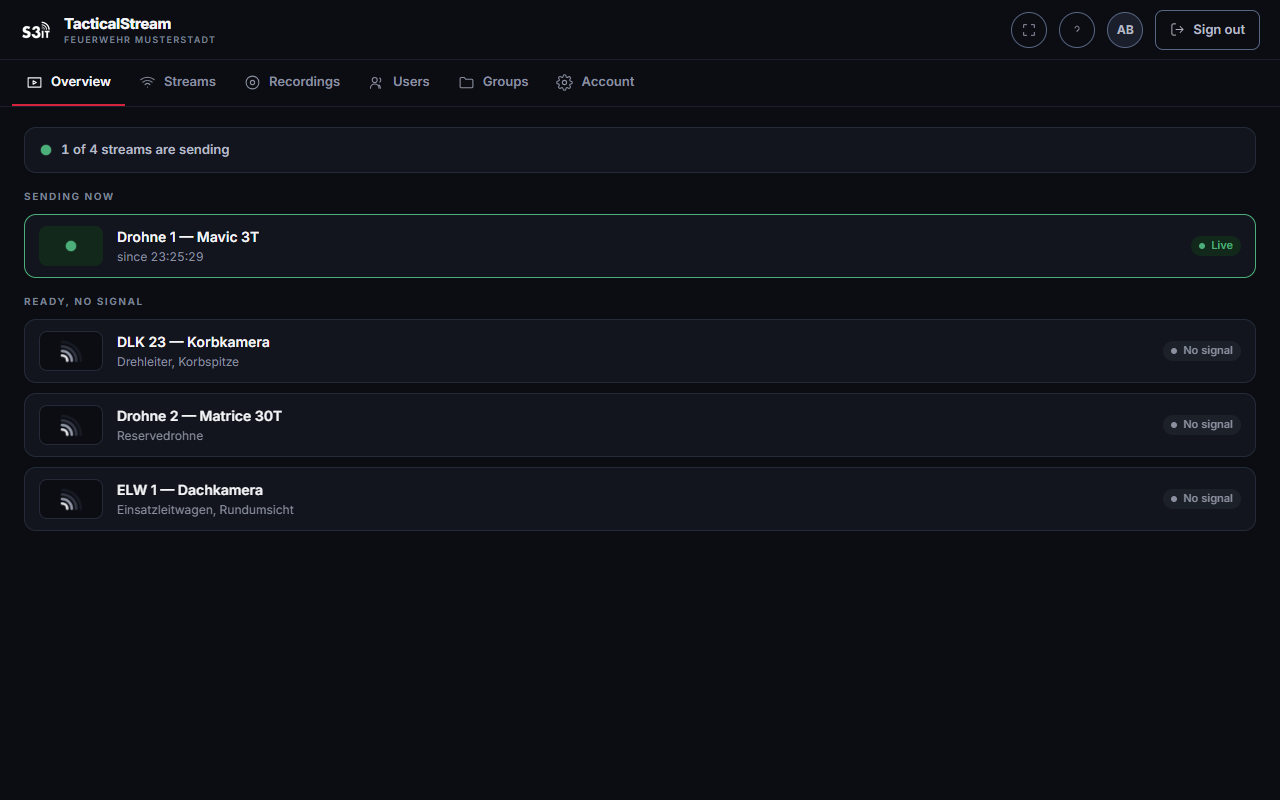
The first page after signing in, and the answer to the question people open this application to ask: is anything coming in right now?
A line at the top gives the number of streams sending. Below it, first what is sending — with its name, a live mark and the time it has been sending since. Below that, what is standing by with no signal.
The page refreshes itself every ten seconds. A broadcast starting or stopping is visible without reloading.
Streams
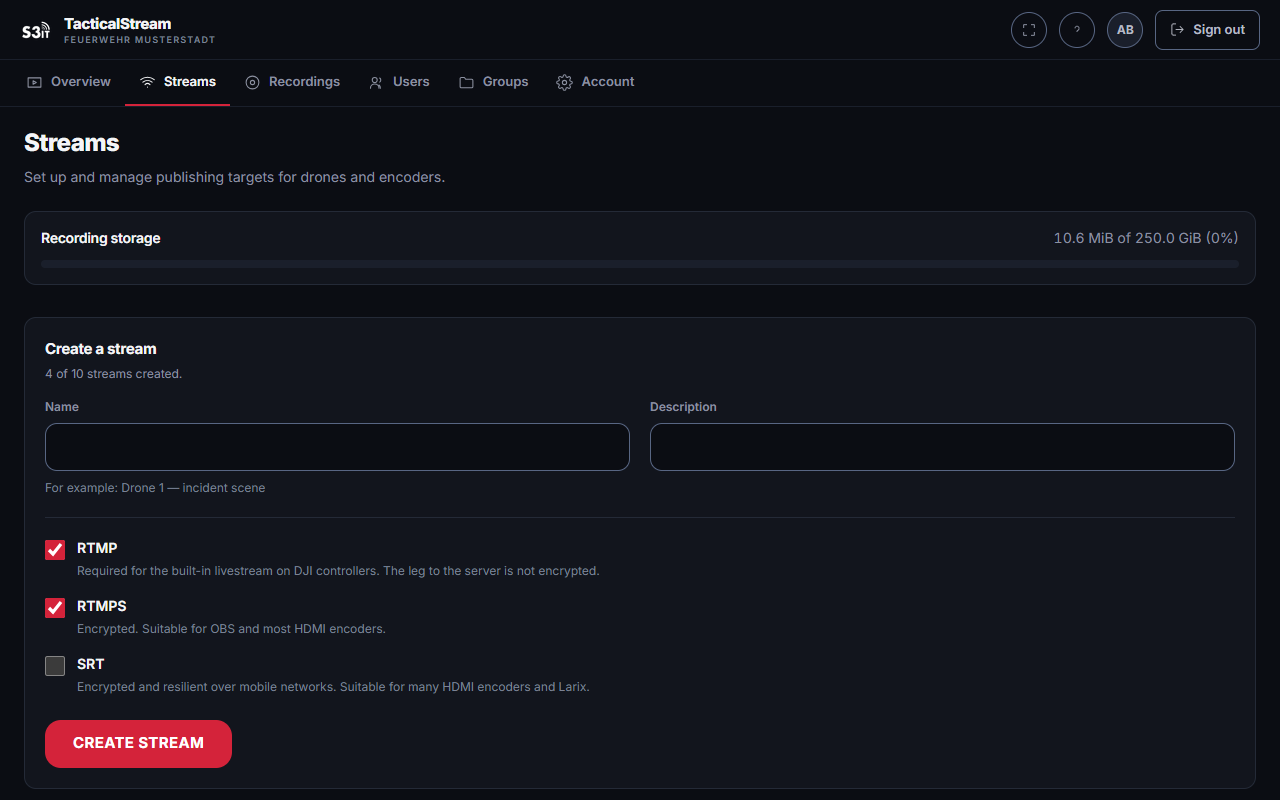
The full list of your organization's streams, with live status. For roles from read and write upward the form to create one is here too: a name, an optional description and the transports it will accept.
A stream is a standing channel, not a single incident. You create one per device — "Drone 1", "Command vehicle — roof camera" — and publish to it again and again.
Stream detail
The working surface for a single stream. Name, live mark and the live picture at the top; beside it — below it on narrow devices — three tabs:
Situation. Who is watching, with the means to end a playback. The stream's visibility: everybody in the organization, or only selected people and groups. Below that, recording and, for administrators, the access log of the share links.
Publishing. Everything the sending device needs: the full address, the publish key on its own, a QR code, and the switches for which transports are allowed. With SRT enabled, its passphrase as well.
Sharing. Creating and managing share links, see Sharing a stream outward. Below that, grants to individual people and groups inside the organization.
Recordings
Described under Finding and watching recordings. The organization's storage position is shown beside the list.
Only what you have access to appears here: recordings of a restricted stream stay out of sight while you hold no grant for that stream.
Users
Administration only.
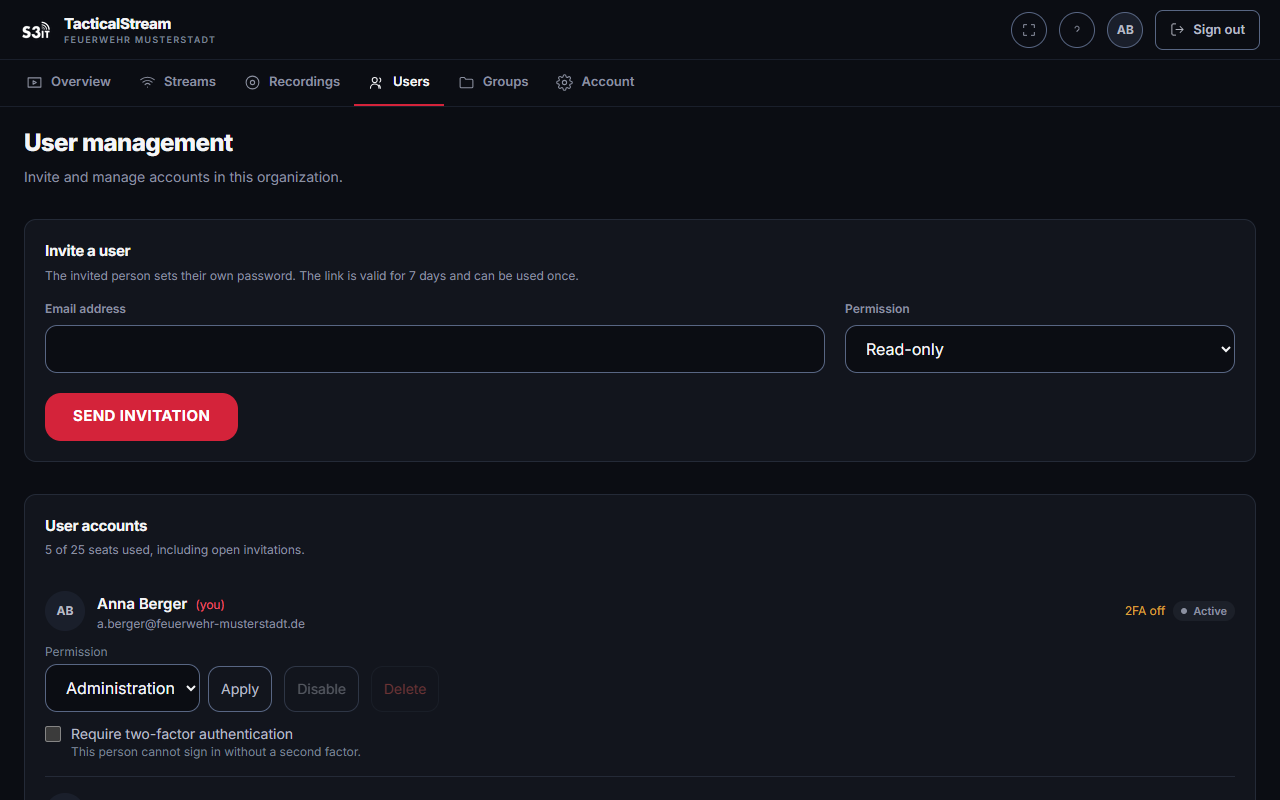
Every account in the organization. Invite people by email here, change roles, disable and delete accounts.
- An invitation is valid for seven days and usable once.
- Open invitations count against the account limit.
- A disabled account loses its sessions and any playback within 30 seconds.
- The last active administration account cannot be demoted, disabled or deleted. The organization would otherwise be unable to manage itself.
Requiring two-factor. Under each account is the checkbox Require two-factor authentication. It takes effect at once, including on sessions that are already open: that person's next action lands them in enrolment, and they reach no pictures or recordings until it is done. While nothing is set up the API refuses the account too, not merely the interface. And somebody under the requirement cannot switch their second factor off again afterwards.
The reason is not the stolen password but the shared one. A password can be passed around a watch; an authenticator on a particular phone is markedly harder to. Anyone who wants to show a third party something should use a share link rather than lend out their account.
Expect the checkbox to stop somebody mid-incident if they have no authenticator app to hand. That is the price of taking effect immediately, and the reason to say so in advance.
Resetting two-factor. When a phone is lost, this button clears the account's second factor and ends its sessions; the person enrols again at their next sign-in. An existing requirement survives the reset. Your own account cannot be reset here — account settings is where that lives, and it costs your password.
Both are logged: who set or lifted the requirement for whom and when, and who reset a second factor.
Groups
Administration only.
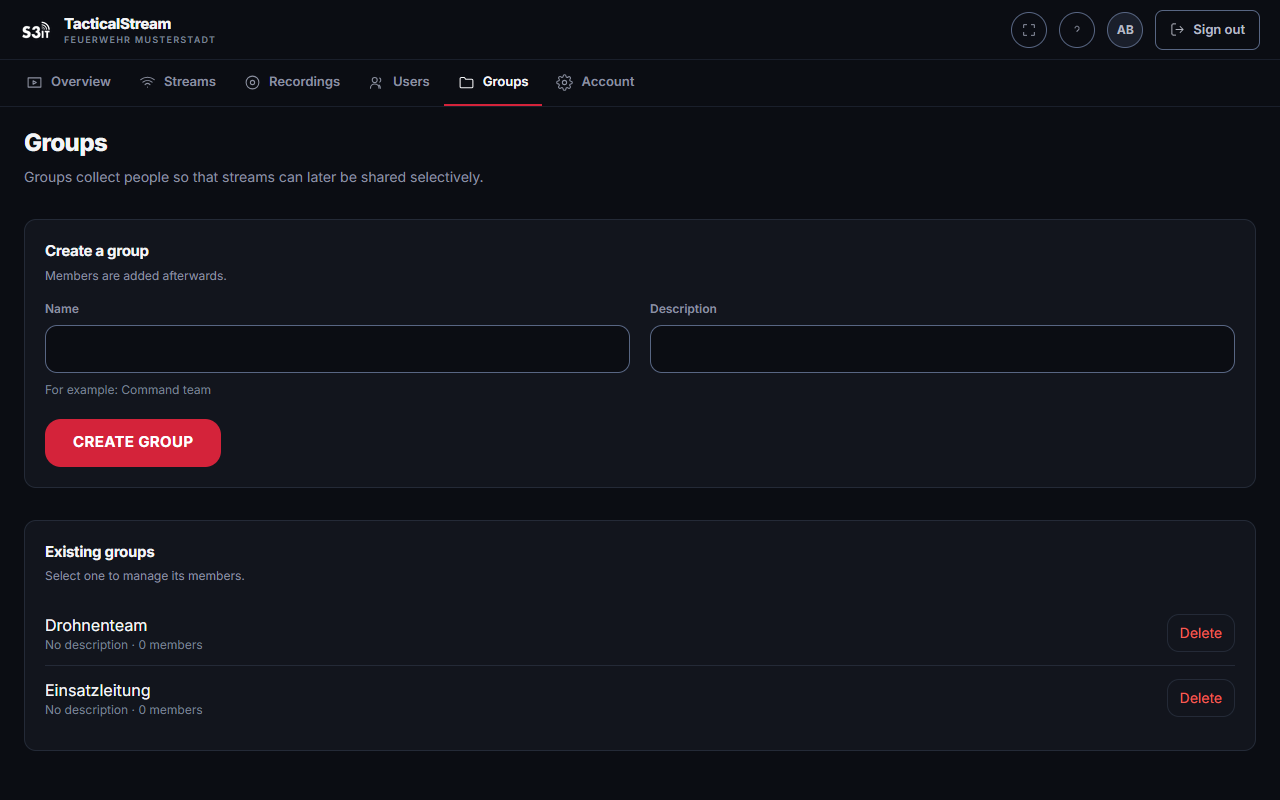
Groups collect people so that grants need not be maintained one at a time — "Command staff" or "Drone team", for instance. Grant a stream to a group and the grant follows the membership automatically.
Organization
Administration only.
Settings that belong to the whole organization rather than to one account. One decision lives here at present: whether access for tablet apps may also be issued as an address with the key built into it — see Access for tablet apps. Below it, every device credential in the organization across all streams; creating and revoking them happens on the stream itself.
Account
Described under Account and security.
Guest view
What somebody opening a share link sees: the stream's name, the live picture, its recordings where the scope allows — and nothing else. No menu, no stream list, no way into the organization.
Where a PIN is set it is asked for before anything plays. Light and dark can be switched at the top right; somebody handed a link at night should not have to start with a white screen. Beside it is Full screen, which makes the most difference on a phone propped on a dashboard.
Part 4 — Administration
This part concerns system administration of the platform, not administration of a single organization.
Organizations
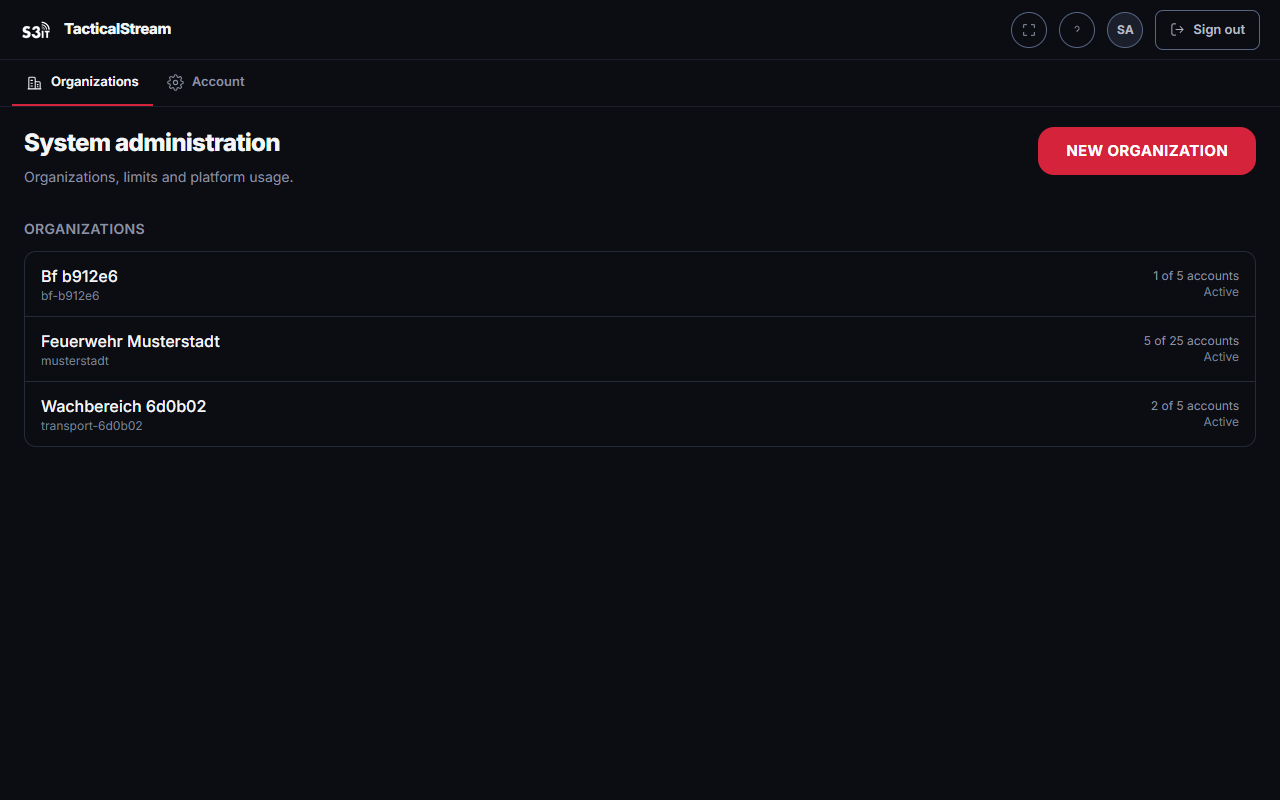
Every organization, with its account count, streams, live broadcasts, storage used and status.
Organizations are created here — there is deliberately no self-registration. Creation sets a name, a plan and every limit; the plan's values prefill them and each can be adjusted.
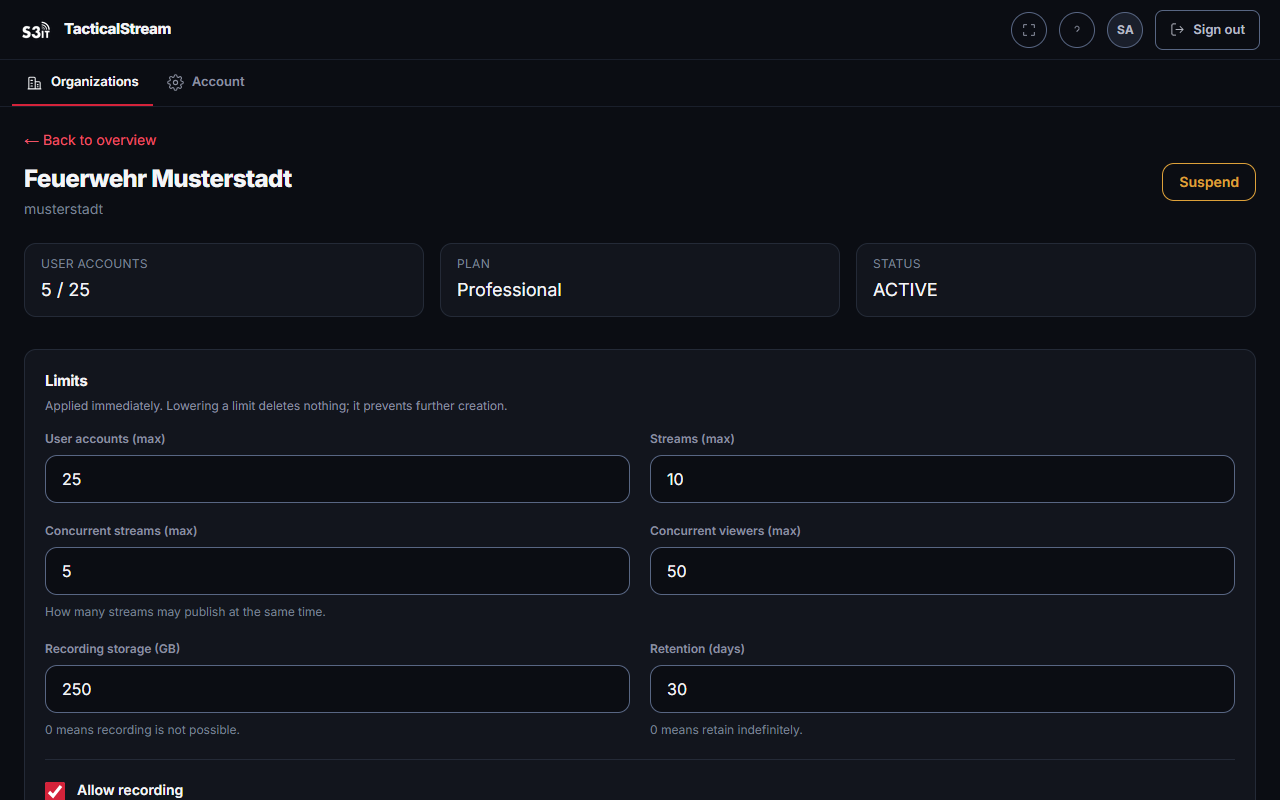
Limits
| Limit | Meaning |
|---|---|
| User accounts | The ceiling, open invitations included. |
| Streams | How many channels may exist. |
| Concurrent streams | How many may publish at the same time. |
| Concurrent viewers | How many playbacks may run at the same time. |
| Allow recording | Without it the organization cannot enable recording at all. |
| Recording storage | The ceiling in gigabytes. |
| Retention | After how many days recordings are deleted automatically. 0 means indefinitely. |
| Allow unencrypted RTMP | Required for the built-in broadcast function of DJI controllers. |
Lowering a limit deletes nothing. It prevents further creation and is shown to the organization as a warning.
An organization's accounts
System administration sees every account in an organization and can change its role, disable it, set a password and delete it. Unlike inside the organization, the last administration account may be removed here — system administration is the way back. The console warns when an organization is left without one.
Suspending and deleting
Suspending puts an organization on hold: sign-in, publishing and playback are refused and running sessions are ended. Recordings are retained but not reachable.
Deleting requires the name to be typed and removes accounts, streams, share links and recordings. The audit entries remain.
Part 5 — Technical
Technical requirements
To watch, a current browser is enough — Chrome, Edge, Firefox or Safari, in one of the recent versions. There is nothing to install, no plug-in and no app.
For low-latency playback the network should allow outbound UDP. Where it cannot, the player switches to HLS by itself; the delay rises to a few seconds and it keeps working.
Bandwidth. Each viewer needs roughly the bitrate being sent — there is no conversion to smaller renditions. At a 5 Mbit/s publish bitrate, every viewer needs about 5 Mbit/s. Worth allowing for when sizing connections and mobile contracts.
To publish, the device needs one of these:
| Route | Port | Encrypted | Note |
|---|---|---|---|
| RTMP | 1935/TCP | no | Required for DJI controllers. |
| RTMPS | 1936/TCP | yes | For encoders that speak it. |
| SRT | 8890/UDP | yes (AES) | The passphrase is generated and displayed by the system. |
Which routes an individual stream accepts is set on its Publishing tab.
Compatible controllers
What matters is the controller, not the aircraft: the controller makes the connection and carries the broadcast function. An aircraft paired with a suitable controller can send.
State of testing. Verified means: it has published to this installation in our own environment. Everything else follows the manufacturer's documentation and should be read as expected but untested.
| Controller | Broadcast | Status |
|---|---|---|
| DJI RC Plus | RTMP via DJI Pilot 2 | verified |
| DJI RC 2 | RTMP via DJI Fly | verified — only with a microphone, see below |
| DJI RC Pro | RTMP via DJI Fly / DJI Pilot 2 | per manufacturer |
| DJI Smart Controller | RTMP via DJI Pilot | per manufacturer |
DJI RC 2: attach a microphone. Without a microphone attached, the RC 2 establishes no broadcast at all — the controller reports no error, there is simply no picture. The microphone therefore belongs with the drone's equipment rather than among its accessories: without it the RC 2 cannot send from an incident. If a stream will not start, check this first.
A shared limitation. The built-in broadcast function sends plain RTMP only. Where the leg to the server must be encrypted, the route is a publishing app on an Android-based controller — Larix Broadcaster, which speaks RTMPS and SRT — or an encoder.
Also suitable: OBS Studio from a laptop and Larix Broadcaster from a phone. Both speak all three routes and are well suited to testing an access before any hardware is on site.
HDMI encoders
An HDMI encoder takes the picture from any camera and sends it as RTMP, RTMPS or SRT — for vehicle cameras, basket cameras on an aerial ladder, or any camera with an HDMI output.
What matters when choosing one:
- RTMPS or SRT, if the leg to the server is to be encrypted. That is the main reason to prefer an encoder over the built-in DJI broadcast.
- A freely enterable destination address. Some devices accept only the presets of well-known platforms.
- H.264. It is passed through without conversion and therefore has to be playable in a browser.
- Preferably without B-frames. They are accepted, but they force playback onto the HLS fallback and so onto a few seconds of delay instead of under one.
- Behaviour when the connection drops. A device that reconnects by itself saves reaching for the equipment during an incident.
Verified devices
| Encoder | Status |
|---|---|
| Zowietek ZowieBox 4K HDMI video encoder | verified |
This section will grow. Further devices will be added as they are tested, and the recommended settings for those already verified will follow.
Troubleshooting
| What you see | Cause and remedy |
|---|---|
| The stream does not appear as live | Check the address, particularly the ten-character key. Check that the transport being used is allowed for this stream at all. If the key was rotated, the old one stopped working immediately. |
| "The stream is being sent but could not be retrieved" | The broadcast is arriving; the playback is not being established. Not a problem at the scene — please inform system administration. |
| The player shows "HLS (fallback)" | WebRTC cannot get through on this network, usually because UDP is blocked. Playback works, with a few more seconds of delay. |
| The picture has frozen | The player picks up again by itself as soon as sending resumes. If it does not, nothing is being sent. |
| "The number of concurrent viewers has been reached" | Not a missing permission but an organization limit. End another playback or have the limit raised. |
| A share link is refused | Expired, revoked or exhausted. Which one is in the share link list; the far end is deliberately not told. |
| After signing in, only two-factor enrolment appears | Your administration has made it compulsory for this account. The way is through it, not around it; an authenticator app on your phone is all it takes. |
| Authenticator app lost, recovery codes used up | Your own organization's administration resets the second factor. You then enrol again. |
| The Full screen button is missing at the top right | This browser does not offer full screen — Safari on an iPhone has it only for the video itself. The Fullscreen control below the picture still works there. |
| No invitation email arrived | Check the spam folder. An invitation is valid for seven days; after that, invite again. |
| Recording does not start | Is recording switched on for this stream, is the organization cleared for it, and is there storage left? |
Data protection
Video and personal data are held solely on secure servers in Germany, operated by Status 3 IT GmbH. No external processor receives stream content or account data. Status 3 IT GmbH will gladly conclude a corresponding data-processing agreement with your organization.
Every use and every refused attempt on a share link is logged with its time, the far end and the outcome, and is visible to administrators. Retention periods for recordings are set per organization and enforced automatically.